
Upload a Video to Kaltura
Kaltura is a video recording, hosting, and streaming application provided for all 91仓库 faculty, staff, and students. Follow these instructions to upload a video to Kaltura.
Before You Start: Make sure your video is one of the .
Upload a Video
- Log into Kaltura at . View Kaltura Login instructions if needed.
Click the + Create button in the top right of the page, then select Upload from the drop-down menu.

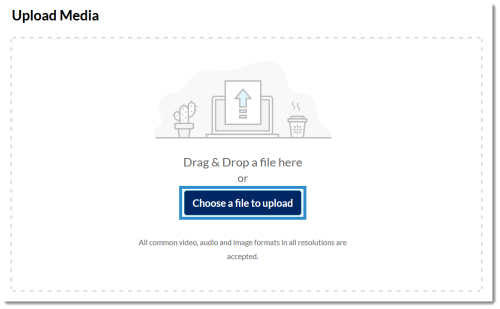
Click the Choose a File to Upload button, then locate and select your video file through the dialog box that pops up. You can also drag and drop a video file directly into the browser window.
Type in a name for the video. You can also include a description and tags (optional).
Then select your desired publishing status. Unlisted videos can be viewed by anyone who has the URL. Private videos can only be viewed by others if you embed them in Canvas using the Embed Kaltura Media tool.
Click Save when you are finished.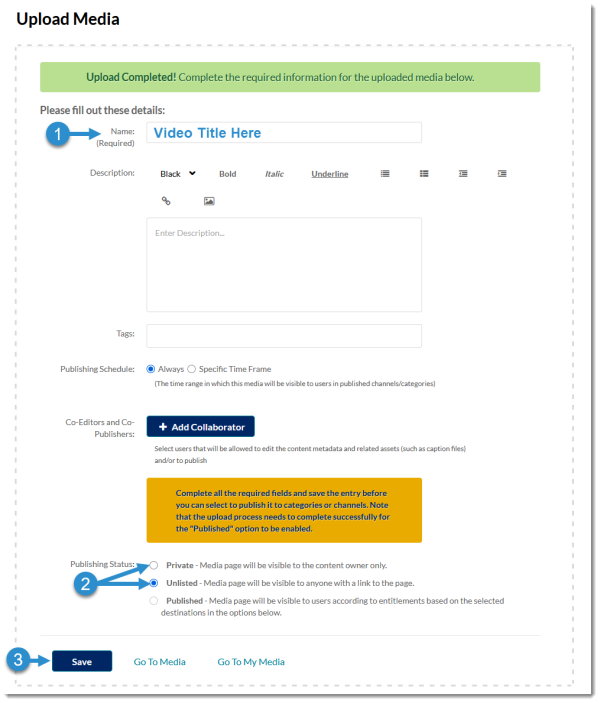
Updated January 2026
