
Embed a Kaltura Video in the Canvas Rich Content Editor
Instructors and students can embed Kaltura videos in their Canvas courses anywhere that the Rich Content Editor (RCE) appears, including pages, assignments, discussion posts, announcements, and more.
Embed a Kaltura Video in the Canvas Rich Content Editor
- Log into Canvas and navigate into your course.
- Create or edit the content item where you want to embed the video.
Place your cursor in the textbox where you would like to insert the video. Then click the Kaltura button in the toolbar.
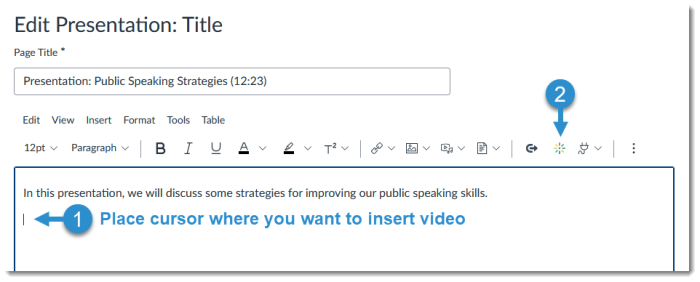
Notes:- If you do not see the Kaltura button in the Rich Content Editor toolbar, you may need to click the More Options (ellipsis) button in the top right corner to view additional tools and/or access it through the Apps (plug) icon instead.
- If you have never used the Kaltura App within Canvas before, you will need to authorize it first (a message will pop up).
- If you do not see the Kaltura button in the Rich Content Editor toolbar, you may need to click the More Options (ellipsis) button in the top right corner to view additional tools and/or access it through the Apps (plug) icon instead.
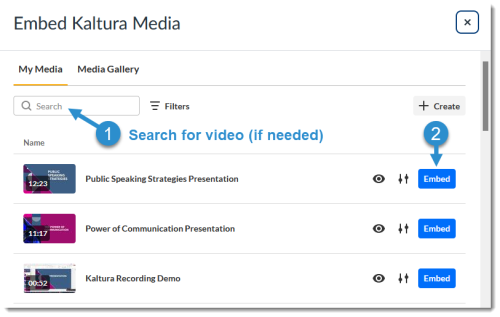
You will see a gallery of your Kaltura videos. Search for the video you want to embed, and then click the Embed button next to the desired video.
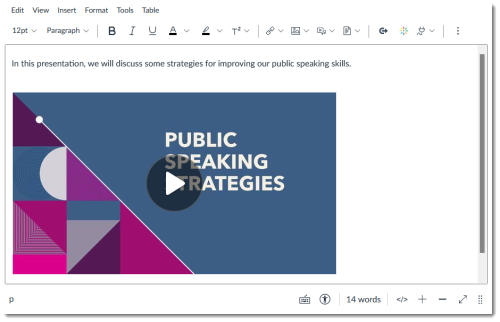
Your video will be embedded in the Rich Content Editor.
- Be sure to save or submit the page/assignment/discussion/announcement, etc. when you are finished.
Updated January 2026
