
The following tabs are instructions and descriptions for each section of the Invention Disclosure Form (IDF). You may follow these instructions by each section as you fill out the application using this .
1) Logging In
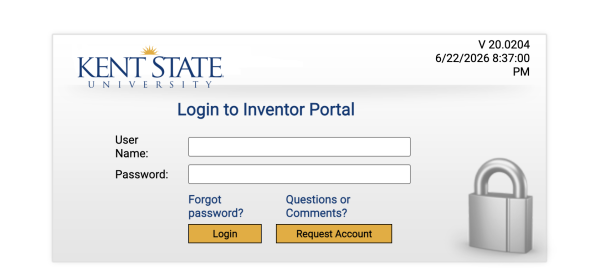
Before filling out the IDF, you must log in to your account. Make sure your device is connected to 91²Ö¿â Wireless before proceeding.
If you do not have an account, click the “Request Account� button. Enter your email address and complete the CAPTCHA verification. Once your account is approved by an administrator, you will be able to log in.
If you already have an account, simply log in using your existing credentials.
2) Creating a New Disclosure
After logging in, you will be prompted to enter a title for invention through the "New Disclosure" dialogue box. Enter an appropriate title and click the "Create New Disclosure" button.

3) Brief Summary
Following this, you will be directed to the "Add New Disclosure" tab on the left navigation bar. Here, you can read the introduction. You will then be asked to provide a concise and non-confidential summary of your invention.

In this section you will also provide details of previous and future disclosures of this invention. First you will choose if this invention is related to a previous invention disclosure that has been submitted to our office. If you answer “Yes� you must provide the KSU Invention I.D. Number.

Next provide the dates and details for all previous and/or future disclosures. The system only allows you to add the date for one disclosure. If you need to add more than one, add additional dates and details in the “Description of Intended Publication/Disclosure� box.

4) Funding/Sponsorship Information
Next you will provide funding and sponsorship information including agencies/entities and grant numbers for all funding sources. If you click yes, you will have the opportunity to disclose if the funding was from a U.S. Federal Agency. If you select "Yes" for the next dropdown too, you will then add additional information in the table below. For that, please click on the "Add Row" button and enter the Agency, Grant/ Contract# and Term information in the appropriate fields.

If no, you will receive a description box to detail the sources and specifics of your funding.

5) Inventors
In the inventors section you will be asked to provide the names and contact details of co-inventors (both 91²Ö¿â and non-KSU contributors) as well as the percentage of their contribution. To add an inventor click “Add Inventorâ€� above the table.
You will be prompted to look up the inventor by name or email. Use the search box in the upper right-hand corner of the window to search for your inventor. If you do not see them, click “Add a new contact� and fill out their name and contact information.Click on the "Search" button.
Navigate the list to find the inventor and select "Choose". After that, select the department by clicking on the more "..." button, enter the department name, click on the "Search" button, select the option from the list and hit "Save Changes".
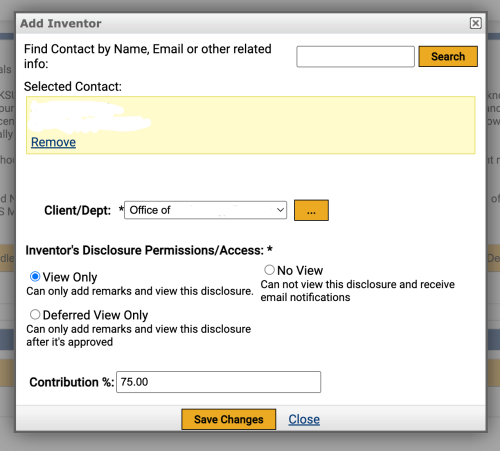
Once added adjust the contribution levels of each row so the total contribution from KSU inventors adds to 100%.
All external contributors should list 0% for their KSU contribution as this % is used only for internal KSU purposes. An agreement related to revenue distribution outside of KSU may be drafted at a later date.

6) Documents
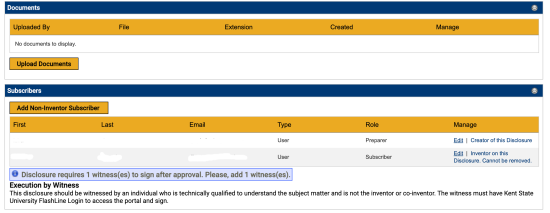
Following this, you will reach the "Documents" section where you can upload any documents you were asked to attach or any additional supplemental materials you would like to include.
7) Subscribers
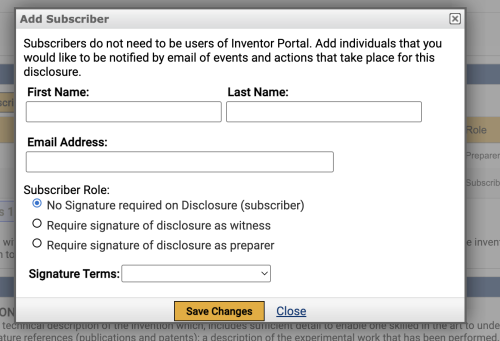
Additionally, in the "Subscribers" section, you must provide a witness who is not the inventor or co-inventor, but that can understand the technical subject matter, to sign. This witness must have a 91²Ö¿â Flashline login. To do this, click “Add Subscriberâ€� in the left-hand corner above the table. Then enter the first name, last name, and 91²Ö¿â e-mail of your witness and choose a subscriber role. This individual does not need to have an account in the portal. They will receive an e-mail and can log in and sign.
8) Detailed Description
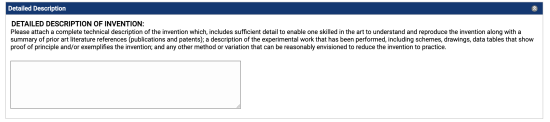
In this section you will be asked to attach a complete technical description of the invention. Please upload that file here.
9) Proprietary Materials
You will be asked if any proprietary materials obtained from another organization were used to develop the invention. If you answer “Yes� you will be prompted to attach a copy of the material transfer agreement that covered the transfer of such materials.

10) Interests
In this section you will provide keywords that describe your invention. For example, if you are creating an invention for bundling hay you may choose words such as “hay,� “farm,� “bundler,� etc. You can do this by clicking on the "Add Row" button.

11) Detailed Invention Information
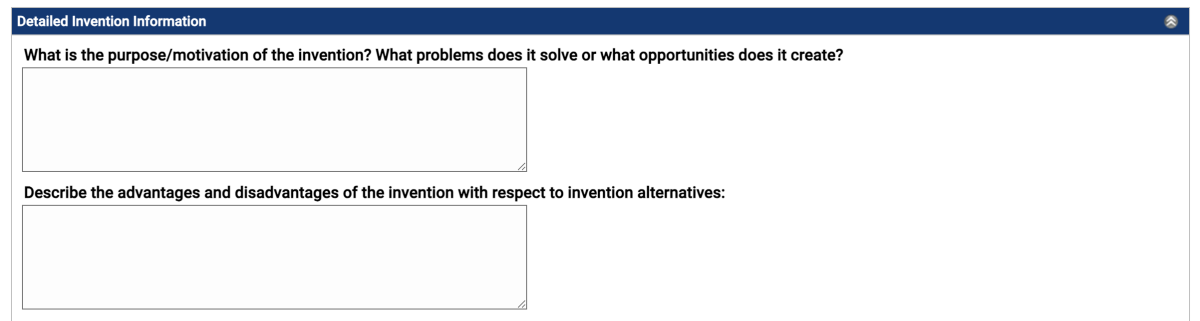
In this section you will describe the advantages and disadvantages of your invention, including its advantages over the state of the art. You must also provide information regarding the purpose/motivation of your invention, the problems it solves, the opportunities it creates, and its practical applications.
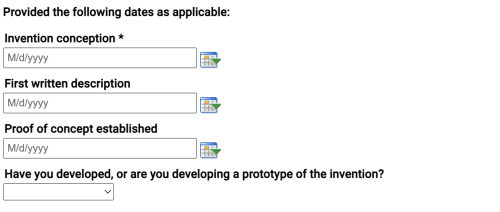
You will then provide the dates of the stages of development of your invention.
12) Commercial & Licensing Potential
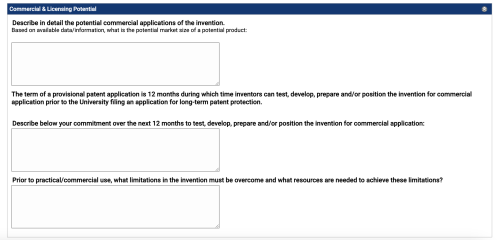
In this section provide commercial applications of the invention in addition to limitations and commitments.
13) Marketing Targets
Here is where you will list companies that may be interested in your technology. Do this by clicking on the "Add Row" button and enter the appropriate information in the displayed fields.

14) Remarks
In this section you may add any comments, remarks, or additional details for your application.